How to Connect Systeme.io MCP With ChatGPT Step by Step
How to Connect Systeme.io MCP With ChatGPT: Step-by-Step Beginner Tutorial
Last updated: 3 Octomber, 2026
Quick Answer: To connect systeme.io MCP with ChatGPT, create an MCP key inside systeme.io, enable Developer Mode in ChatGPT, create a custom MCP app, add your systeme.io MCP server URL, select No Auth, then test the connection with a safe read-only request.
Systeme.io now has an MCP integration option that can connect ChatGPT with your systeme.io account through the official systeme.io MCP server.
This is exciting because it opens the door to using ChatGPT in a much smarter way with your systeme.io account. Instead of only asking general questions, you may be able to connect ChatGPT to your systeme.io data, check available functions, inspect contact fields, and eventually work faster as more tasks become available.
In this tutorial, I will show you how to create your MCP key inside systeme.io, how to add the systeme.io MCP server inside ChatGPT, and how to test the connection safely.
Important: This is a developer-style setup. The systeme.io MCP server is still in beta, so some actions may depend on your ChatGPT plan, workspace permissions, or future systeme.io updates.
Table of Contents
What Is MCP?
MCP stands for Model Context Protocol. In simple words, it is a way for ChatGPT to connect with external tools and services through a server.
For systeme.io users, this means ChatGPT may be able to connect to selected systeme.io functionality through the official systeme.io MCP server.
This can become very useful for creators, affiliates, course sellers, funnel builders, and business owners who want to work faster with their systeme.io account.
Why This Is Exciting for Systeme.io Users
This integration is still early, but it shows where things are going. As more tools and tasks become available, ChatGPT may become even more useful for creating content, checking data, managing contacts, planning campaigns, and helping you work inside systeme.io with less manual effort.
For content creators and affiliate marketers, this is especially interesting. Imagine being able to ask ChatGPT to help you understand your contact fields, prepare contact updates, or eventually support more workflow tasks as the MCP server grows.
That is why I recommend bookmarking this post and coming back soon. I will keep testing this integration and updating this guide when I discover more safe and useful ways to use it.
Bookmark This Tutorial
MCP is still developing, and more tasks may be added over time. Save this page and come back later because I may add new examples, new prompts, and new use cases as the integration grows.
What You Need Before Starting
- A systeme.io account.
- Access to the MCP keys section inside systeme.io.
- A ChatGPT account with Developer Mode available.
- Permission to create custom apps/connectors in ChatGPT.
- A few minutes to create the key, add the app, and test the connection.
Security Warning
Your MCP key is like a password. Never publish it, never share it publicly, and never include it in screenshots unless it is fully blurred or hidden.
Step-by-Step Systeme.io MCP and ChatGPT Setup
Step 1: Go to Your Systeme.io MCP Keys
First, open your systeme.io account and go to the area where you can manage your MCP keys.
Systeme.io explains that MCP keys are used to authorize AI assistants to access your account and perform tasks such as adding tags or creating contacts.
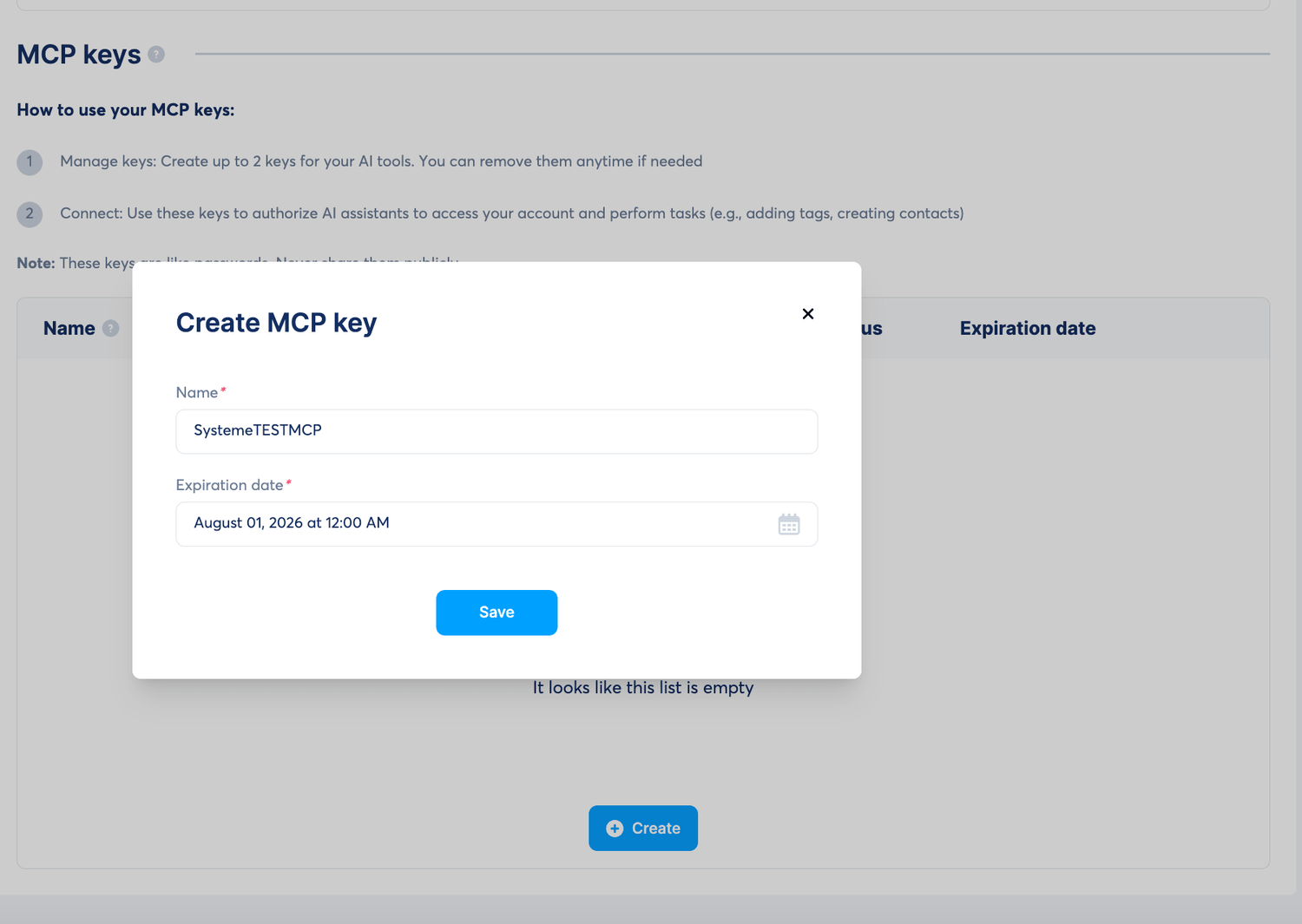
What to Do
- Open your systeme.io account.
- Go to the MCP keys section.
- Click Create.
- Add a clear name for your key.
- Choose an expiration date and save the key.
Step 2: Create and Save Your MCP Key
After you create the MCP key, systeme.io will show it in your MCP keys list. You will need this key for the ChatGPT MCP server URL.
Copy the key and save it somewhere secure. Do not save it in a public document or share it with anyone.
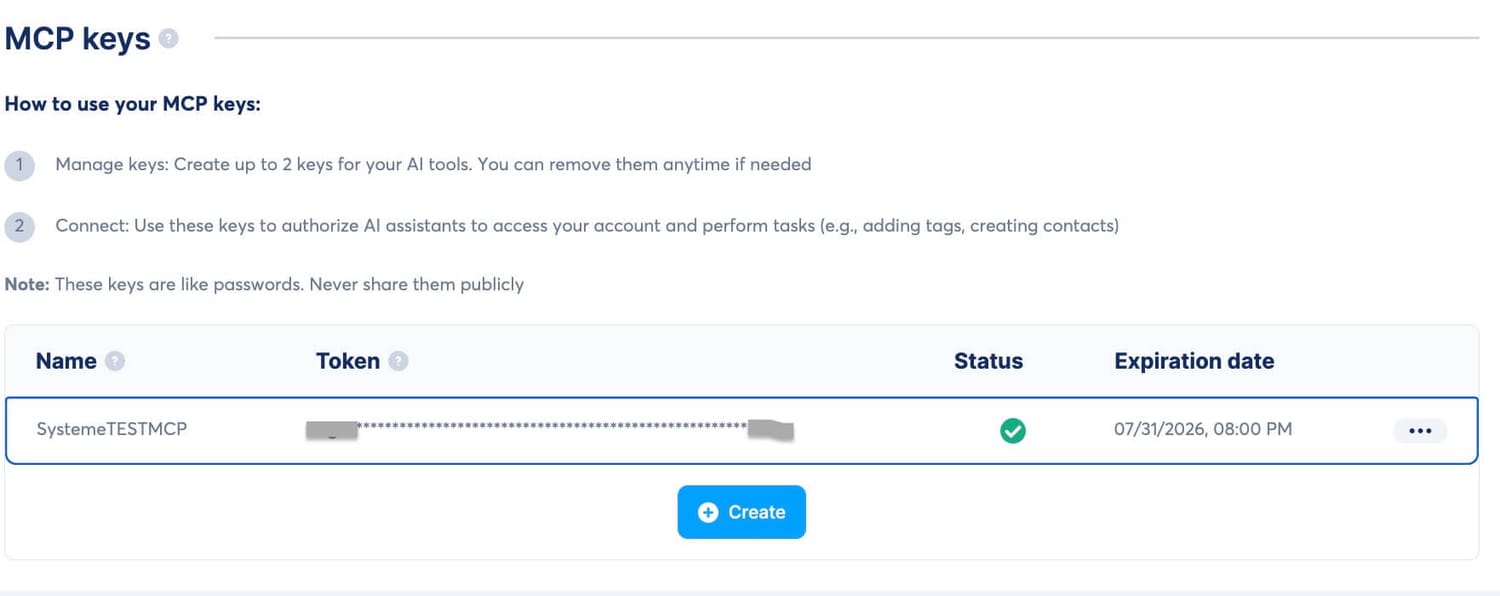
Important
The MCP key is sensitive. If you create screenshots for your own tutorial, blur the key before publishing the image.
Step 3: Open ChatGPT Settings
Now open ChatGPT and go to the settings area. You need to find the section for apps, connectors, or integrations.
Because systeme.io does not currently have an official ChatGPT application, the MCP server is added through ChatGPT Developer Mode.
Step 4: Enable Developer Mode in ChatGPT
To add a custom MCP integration, Developer Mode needs to be enabled inside ChatGPT.
Developer Mode Checklist
- Open ChatGPT settings.
- Go to Apps & Connectors.
- Open Advanced settings if needed.
- Turn Developer Mode on.
If you do not see Developer Mode, your ChatGPT plan or workspace settings may not allow custom MCP apps.
Step 5: Create a New App in ChatGPT
After Developer Mode is enabled, go back to Apps & Connectors and create a new app.
This is where you will add the systeme.io MCP server URL.
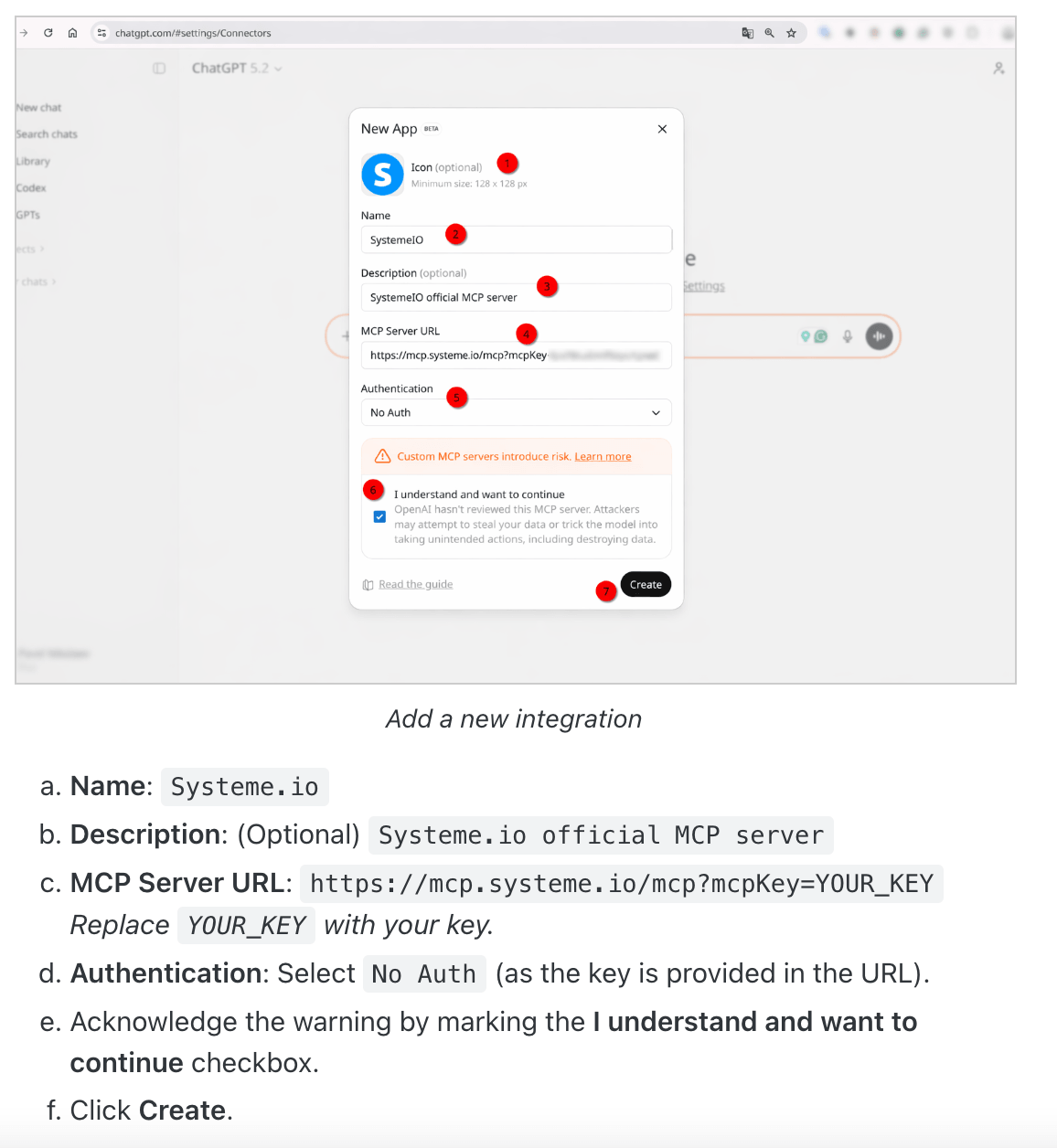
Step 6: Add the Systeme.io MCP Server URL
In the new app form, enter the app details. You can use a simple name like Systeme.io MCP or Systeme.io MCP TEST.
| Field | What to Add |
|---|---|
| Name | Systeme.io MCP |
| Description | Systeme.io official MCP server |
| MCP Server URL | https://mcp.systeme.io/mcp?mcpKey=YOUR_KEY |
| Authentication | No Auth |
Replace YOUR_KEY with the real MCP key you created in systeme.io.
https://mcp.systeme.io/mcp?mcpKey=YOUR_KEY
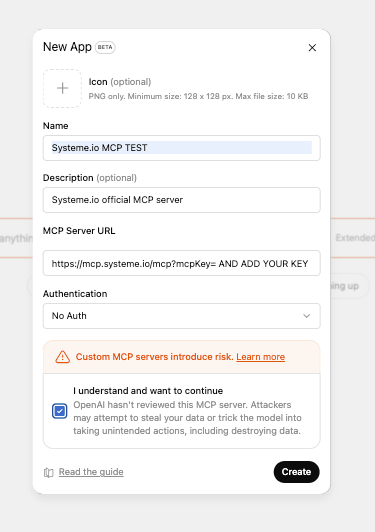
Important URL Tip
Do not paste the example URL without your key. You must replace YOUR_KEY with your real systeme.io MCP key.
Step 7: Select No Auth and Create the App
For authentication, select No Auth. This is because the MCP key is included directly inside the MCP server URL.
ChatGPT may show a warning that custom MCP servers introduce risk. Read the warning carefully, tick the confirmation box if you understand, and then click Create.
Safety Reminder
Only connect MCP servers you trust. Make sure the URL is exactly the official systeme.io MCP URL before creating the app.
Step 8: Start a New Chat and Enable the Systeme.io MCP App
After the app is created, start a new ChatGPT conversation and enable the systeme.io MCP app for that chat.
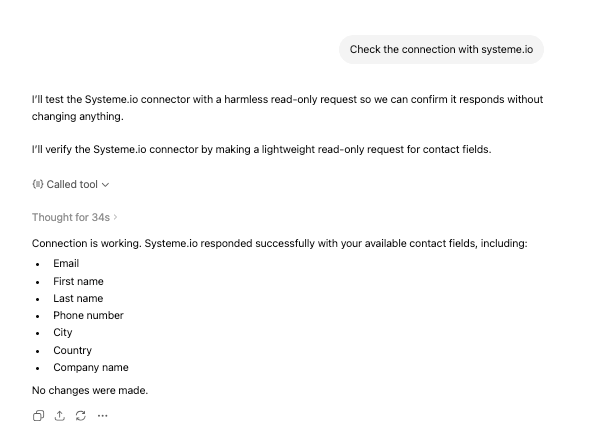
Once it is enabled, you can ask ChatGPT to check the connection with a harmless read-only request.
Check the connection with systeme.io.
Step 9: Test the Connection Safely
Your first test should be read-only. Do not create, update, or delete anything until you know the connection is working.
In my test, ChatGPT was able to check the connection and confirm that systeme.io responded with available contact fields such as email, first name, last name, phone number, city, country, and company name.
Good Sign
If ChatGPT can make a safe read-only request and systeme.io responds, your MCP connection is working.
Useful Starter Prompts
Here are some simple prompts you can try once the MCP app is enabled in your chat.
Safe Read-Only Prompts
- What systeme.io functions are available?
- Check the connection with systeme.io.
- Show me the available contact fields.
- List the last 20 contacts.
- Explain what actions are available before doing anything.
Action Prompts With Confirmation
- Prepare to create a new contact, but show me the details first.
- Prepare to update this contact, but ask for confirmation before saving.
- Find this contact and show the details before making changes.
- Do not delete or remove anything unless I clearly confirm.
Common Problems and How to Fix Them
If something does not work, do not panic. This is still a developer-style setup, so small issues can happen.
| Problem | What to Try |
|---|---|
| Developer Mode is missing | Your ChatGPT plan or workspace may not support it, or an admin may need to enable it. |
| The app will not create inside ChatGPT | Refresh the ChatGPT page and try again. This worked for me when the app creation step failed. |
| MCP app will not connect | Check that your MCP key is correct, not expired, and included in the server URL. |
| No functions appear | Make sure the MCP app is enabled inside the current ChatGPT conversation. |
| Write actions do not work | Your ChatGPT plan, workspace, or admin settings may restrict create, update, or delete actions. |
| You are unsure about an action | Ask ChatGPT to show the exact planned action first. Do not confirm until you are sure. |
Best Practices for Using Systeme.io MCP With ChatGPT
- Start with read-only prompts first.
- Never publish your MCP key.
- Ask ChatGPT to show the planned action before making changes.
- Use test contacts before working with important contacts.
- Be extra careful with delete or remove actions.
- Disable or remove the app if you no longer need it.
Frequently Asked Questions
Is systeme.io MCP an official ChatGPT app?
No. Systeme.io does not currently have an official ChatGPT application, so the MCP server is added through ChatGPT Developer Mode.
Do I need Developer Mode in ChatGPT?
Yes. You need Developer Mode enabled in ChatGPT to create and use a custom MCP app.
What authentication should I select?
Select No Auth. The MCP key is already included in the MCP server URL.
What should I do if ChatGPT fails to create the app?
Refresh the ChatGPT page and try again. This worked for me when the create app step did not complete properly.
Can ChatGPT create or update contacts?
The official guide shows contact management examples, including creating, updating, and removing contacts. Always confirm the action before making changes.
Should beginners use this integration?
Beginners can follow the tutorial, but it is better to start carefully with read-only prompts first. Do not use write actions until you understand what the integration is doing.
Will more tasks be added in the future?
The MCP server is still in beta, so I am watching this closely. Bookmark this post and come back soon because I may add more examples, more prompts, and more updates as I test new possibilities.
Key Takeaways
- Systeme.io MCP lets ChatGPT connect with selected systeme.io account functions.
- You need an MCP key from systeme.io and Developer Mode enabled in ChatGPT.
- The MCP server URL uses your MCP key, and authentication should be set to No Auth.
- Start with safe read-only prompts before creating, updating, or deleting anything.
- Bookmark this tutorial because more MCP tasks may become available over time.
About the Author
My name is Daniel Popa, and I created Systeme.io For Beginners to help beginners understand systeme.io, build simple funnels, learn affiliate marketing, and use online business tools with more confidence.
I test systeme.io features, tutorials, AI workflows, and beginner-friendly strategies so you can learn the platform step by step without feeling overwhelmed. Read more about me here.
More Helpful Guides
These are helpful articles from my blog to help you learn systeme.io, build funnels, understand pricing, and use the platform with more confidence.
Want to Learn Systeme.io Step by Step?
Start with my beginner-friendly systeme.io guides and learn how to build funnels, use automation, promote offers, and grow your online business with more clarity.
Start Here Start Systeme.io for FreeFinal Thoughts
The systeme.io MCP integration with ChatGPT is one of the most interesting updates for systeme.io users who want to work faster with AI.
Start simple, test the connection safely, protect your MCP key, and use confirmation prompts before making changes inside your account.
This is just the beginning. As more tasks become available, there may be many fun and useful ways to create content, organize contacts, and build smarter workflows with systeme.io and ChatGPT.
Read the Official Systeme.io MCP Guide
About me

I’m Daniel Popa. I help beginners learn how to use Systeme.io to build funnels, grow an email list, and start affiliate marketing with simple, low-cost tools.



©SystemeioForBeginners
Important Note
*systemeioforbeginners.com is an independent educational website and is not owned, operated, endorsed, or sponsored by Systeme.io or ITACWT Limited.
Some links on this website may be affiliate links. If you sign up through one of my links and later choose a paid plan, I may earn a commission at no extra cost to you.