Tested: October 2026 | Test type: Logged-in, hands-on setup and customer journey | Project: BuildSysteme
I created and tested my own white-label version of the platform under the name BuildSysteme. This was not a review based only on a public sales page.
I worked inside my account, connected a custom domain, customized the branding, examined the automatically created pages, created a test customer account, opened the client dashboard, checked the upgrade process and built a funnel from the customer side.
What Does White Labeling Systeme.io Mean?
White labeling lets you provide the platform under your own business identity. Your customers can use a custom domain and see your platform name, logo, favicon and selected brand colours.
The underlying platform can provide tools for websites, sales funnels, email marketing, automations, courses, communities, contacts and digital products. The exact resources available to each customer depend on the plan you are eligible to offer and the limits assigned to it.
White labeling does not mean you developed or own the underlying software. You are operating and selling access to a branded service that uses third-party platform infrastructure.
What You Need Before Activating White Label
- An active account with access to the white-label area
- A dedicated custom domain or subdomain
- Access to the domain’s DNS records
- A platform name
- A logo and favicon
- Primary and secondary brand colours
- A verified sender email address
- Your proposed plan names and prices
- Privacy, cookie and terms pages
- A customer-support email address
Step 1: Configure the White-Label Domain
Inside the white-label configuration, I selected the custom domain that would be used for BuildSysteme.
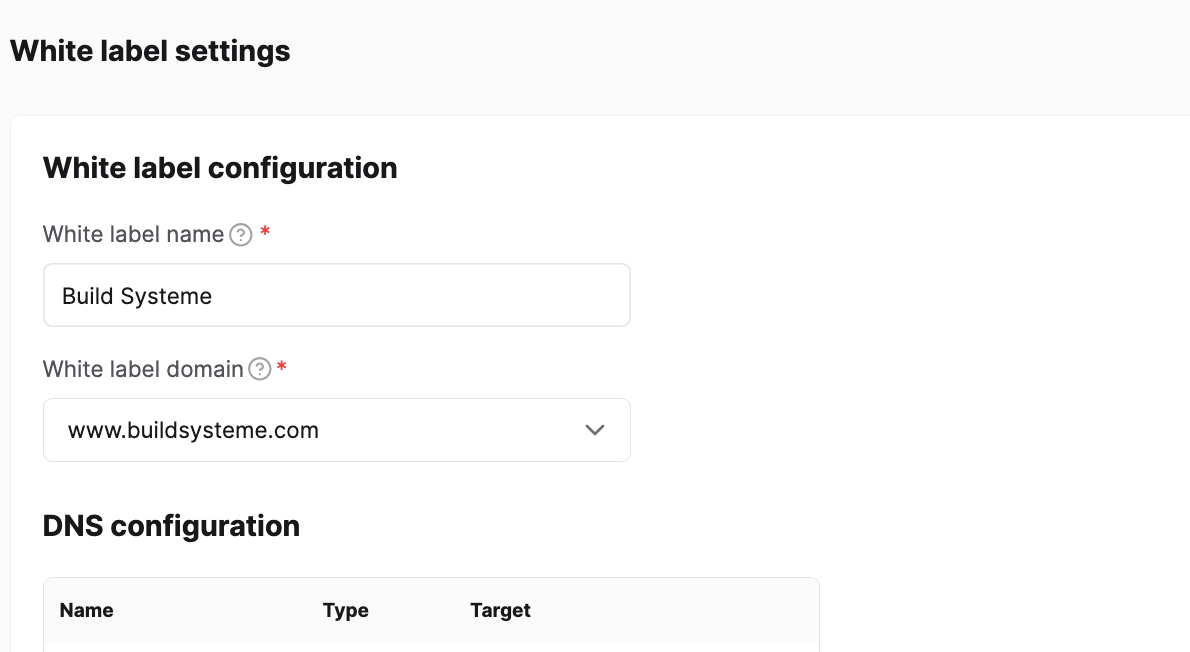
After the domain is selected, the account provides the required domain configuration. This normally involves adding the displayed CNAME information to the DNS settings at your domain provider.
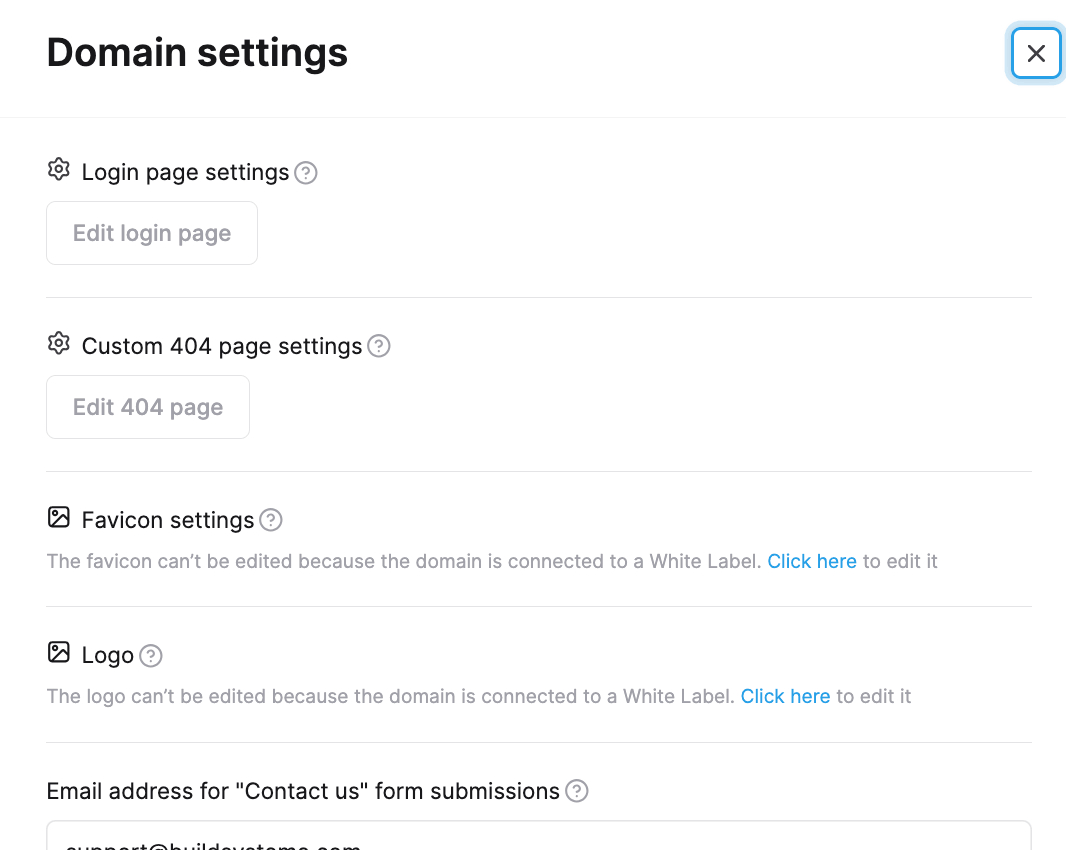
Domain setup checklist
- Confirm that you selected the correct domain.
- Copy the DNS record exactly as displayed.
- Do not add spaces or alter the target value.
- Allow time for DNS propagation.
- Do not publish private DNS values unnecessarily.
- Test the root domain, registration page and login page.
Step 2: Add Your Platform Branding
I added the BuildSysteme identity using the brand-customization controls. This area lets the reseller add a logo, favicon and interface colours.
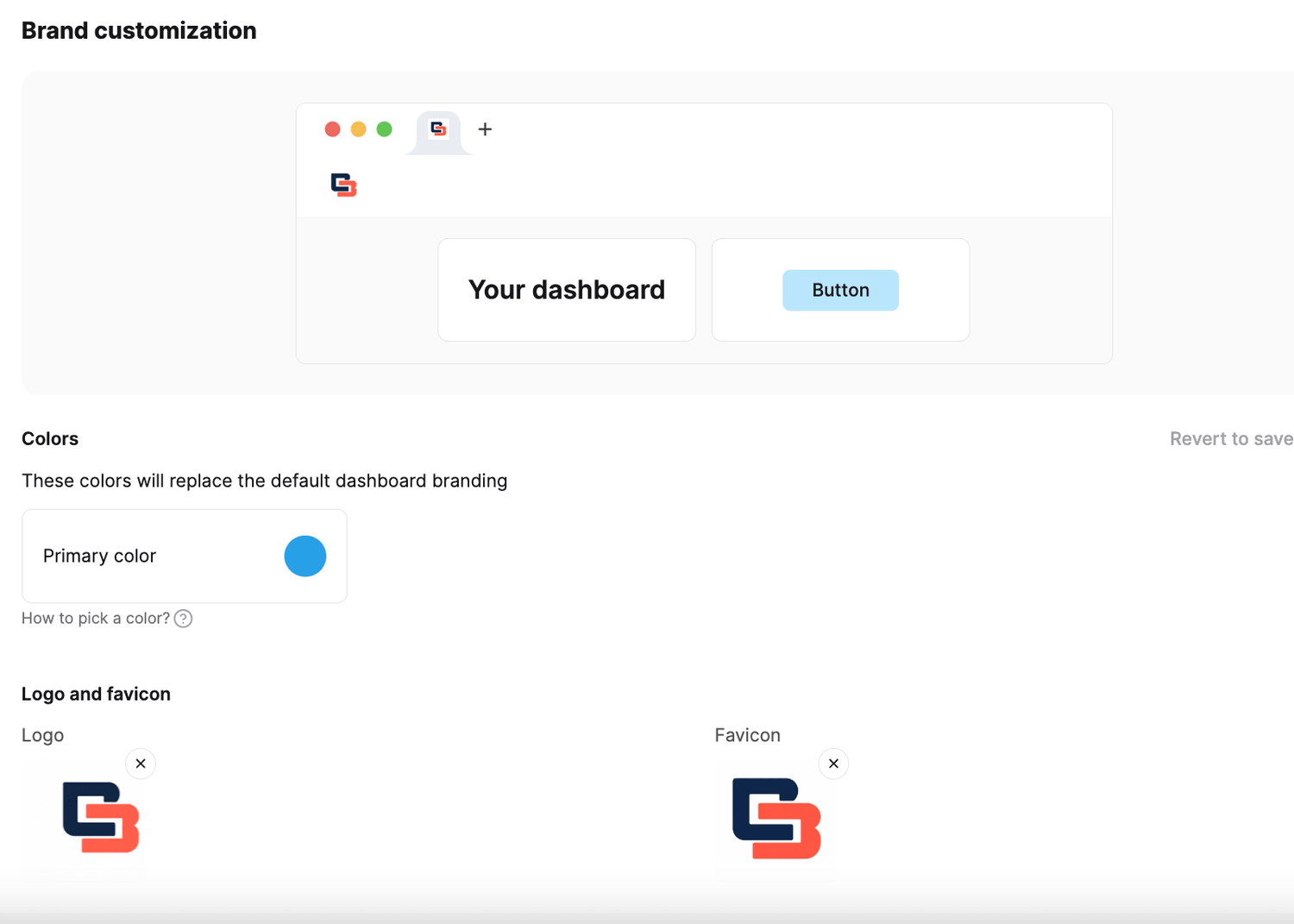
Keep the branding simple. A detailed logo may become unreadable when displayed inside a narrow dashboard header.
Step 3: Configure the Available Plans
The reseller dashboard displays the plans that the account is currently eligible to offer. The available options depend on the reseller’s own plan and the current platform rules.
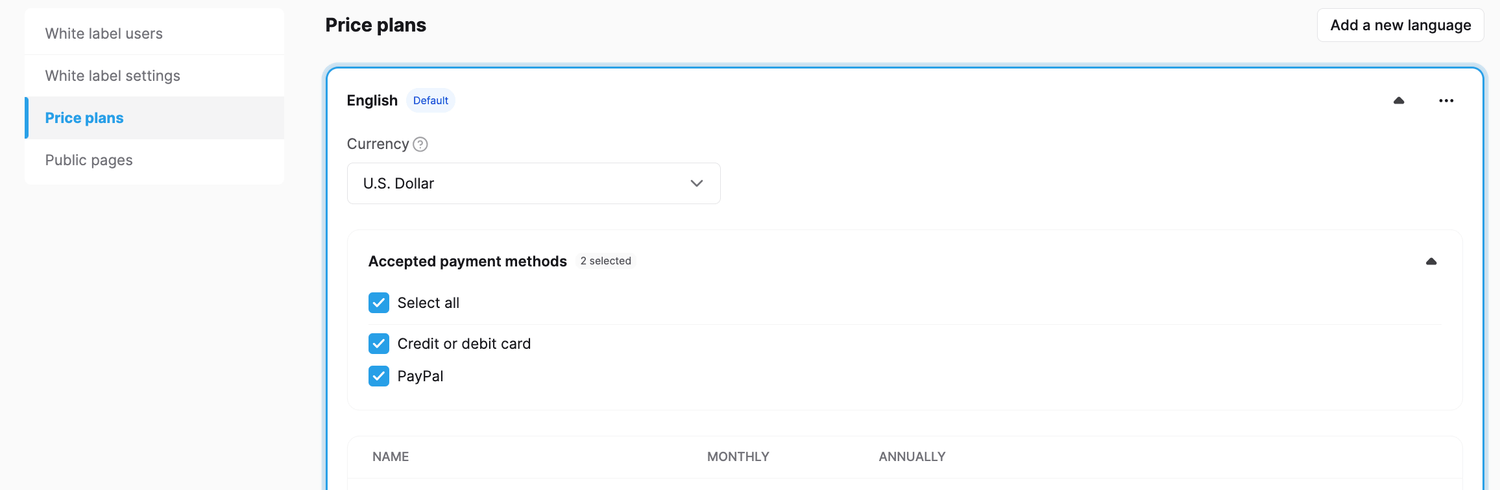
Plan settings may include:
- Customer-facing plan name
- Internal dashboard name
- Monthly price
- Annual price
- Statement descriptor
- Tax behaviour
- Included resources
- Upgrade page
- Thank-you page
Why customers start with a free account
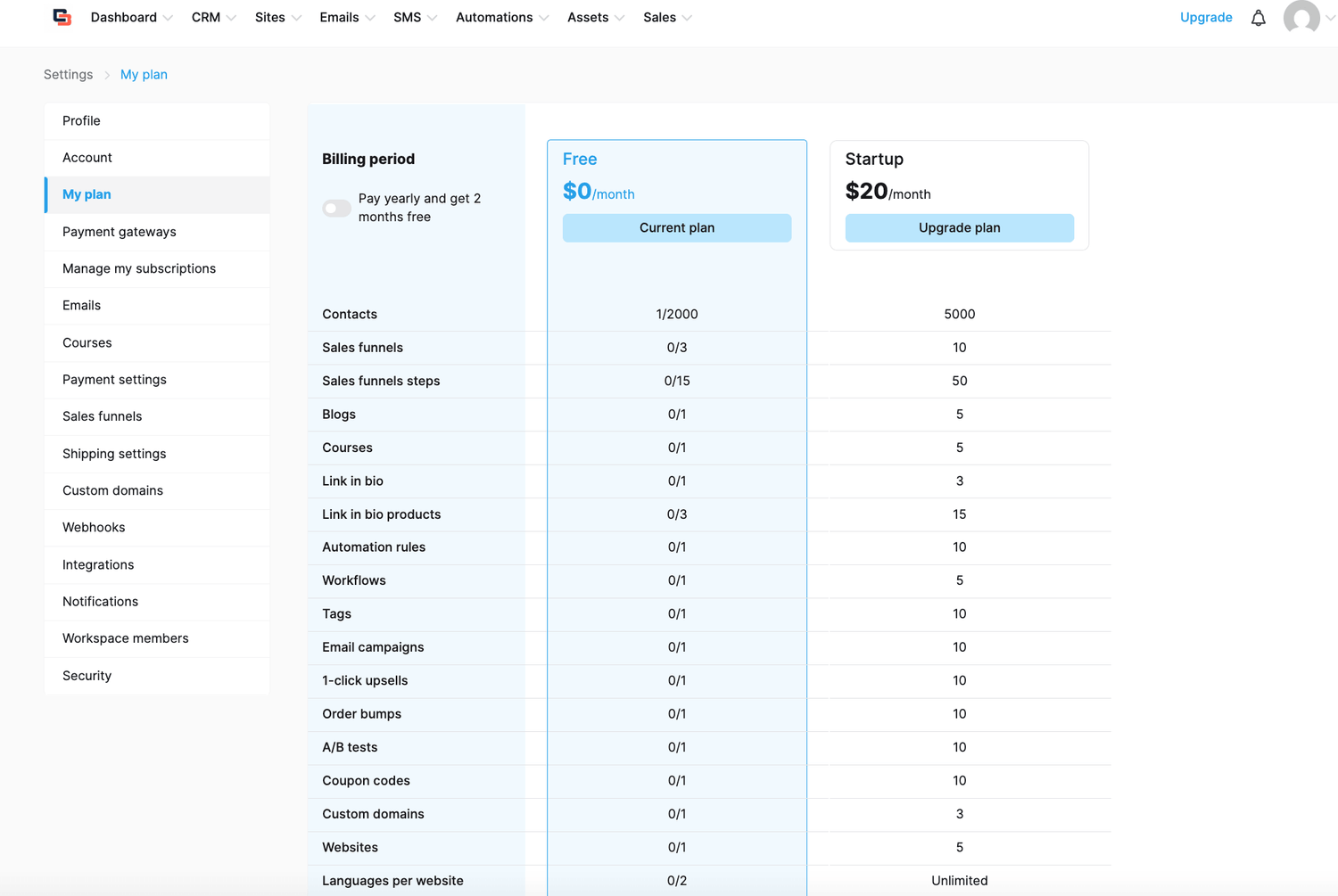
The current white-label flow does not sell a paid account directly to a completely new customer. A visitor first creates a free branded account. After signing in, the customer can open Settings → My Plan and select an available upgrade.
For that reason, your main CTA should say something accurate such as:
- Create Your Free Account
- Start Free
- Create an Account
- Start Free and Upgrade Anytime
Step 4: Review and Customize the Default Public Pages
Activating the white-label feature generated a set of editable public pages. I could see the homepage, pricing page, login page, account-creation page, password-recovery page, contact page and 404 page in the editor.
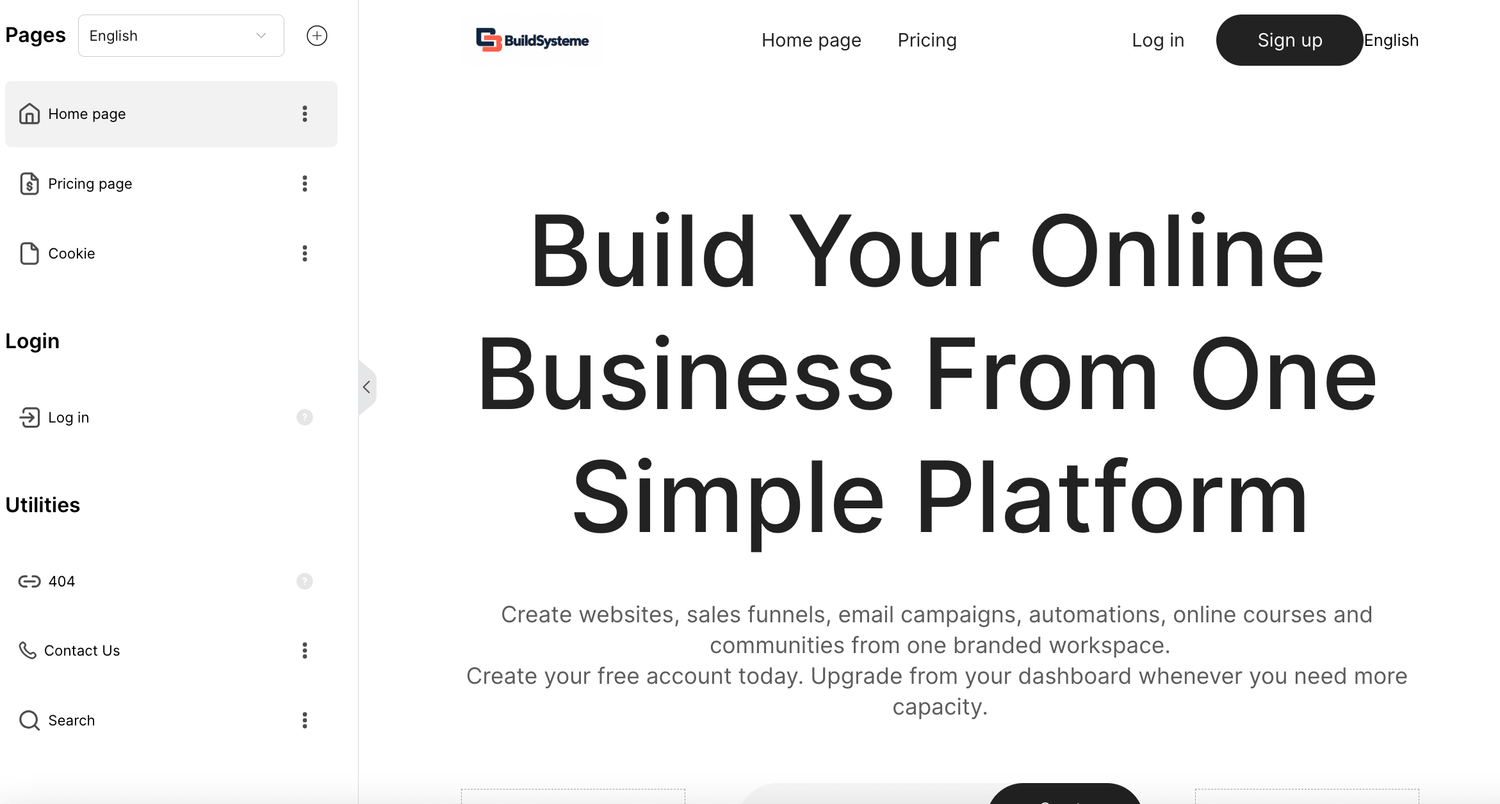
Default homepage
The automatically created homepage provided a starting layout that I could replace with accurate BuildSysteme content, branding and navigation.
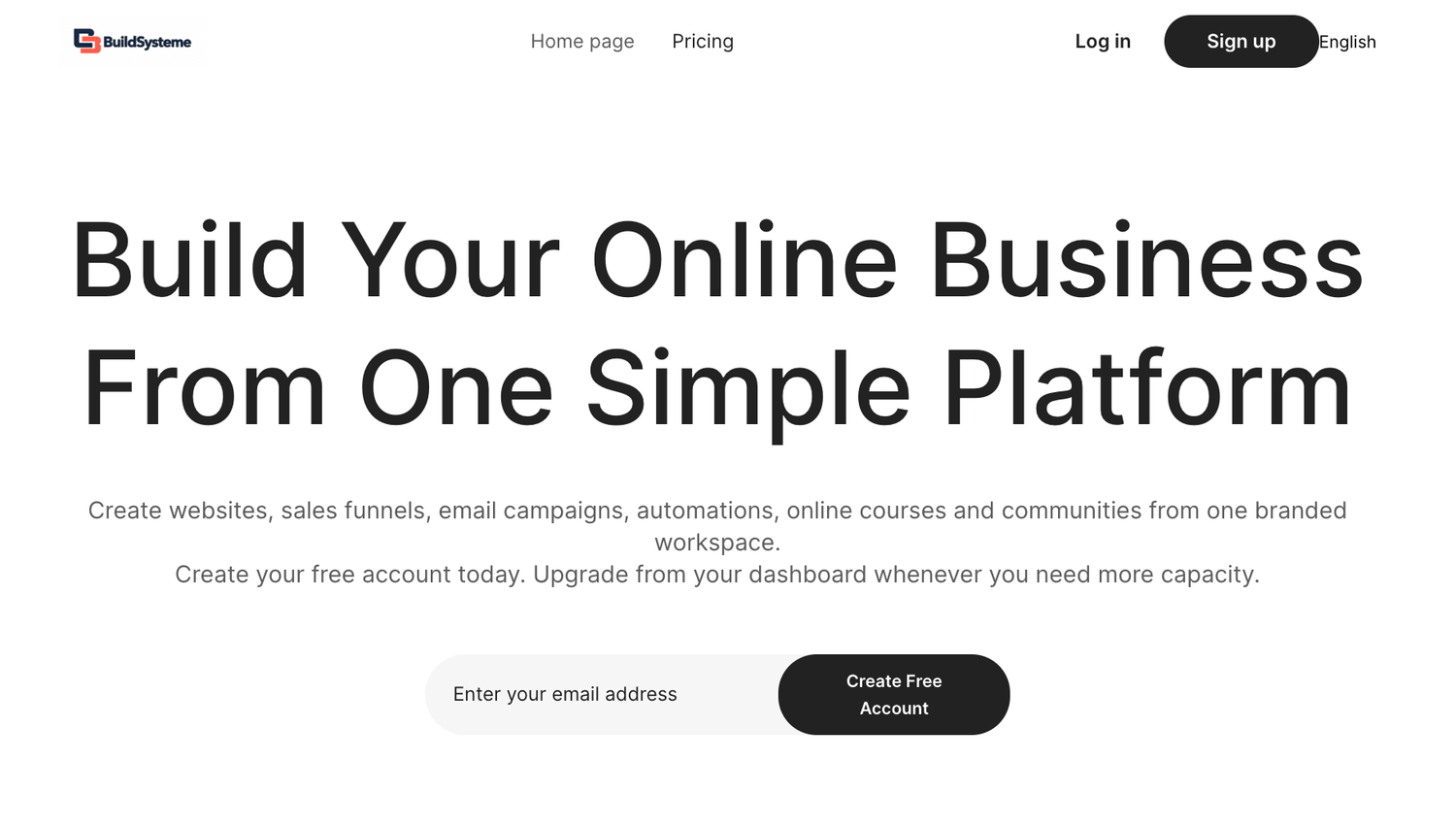
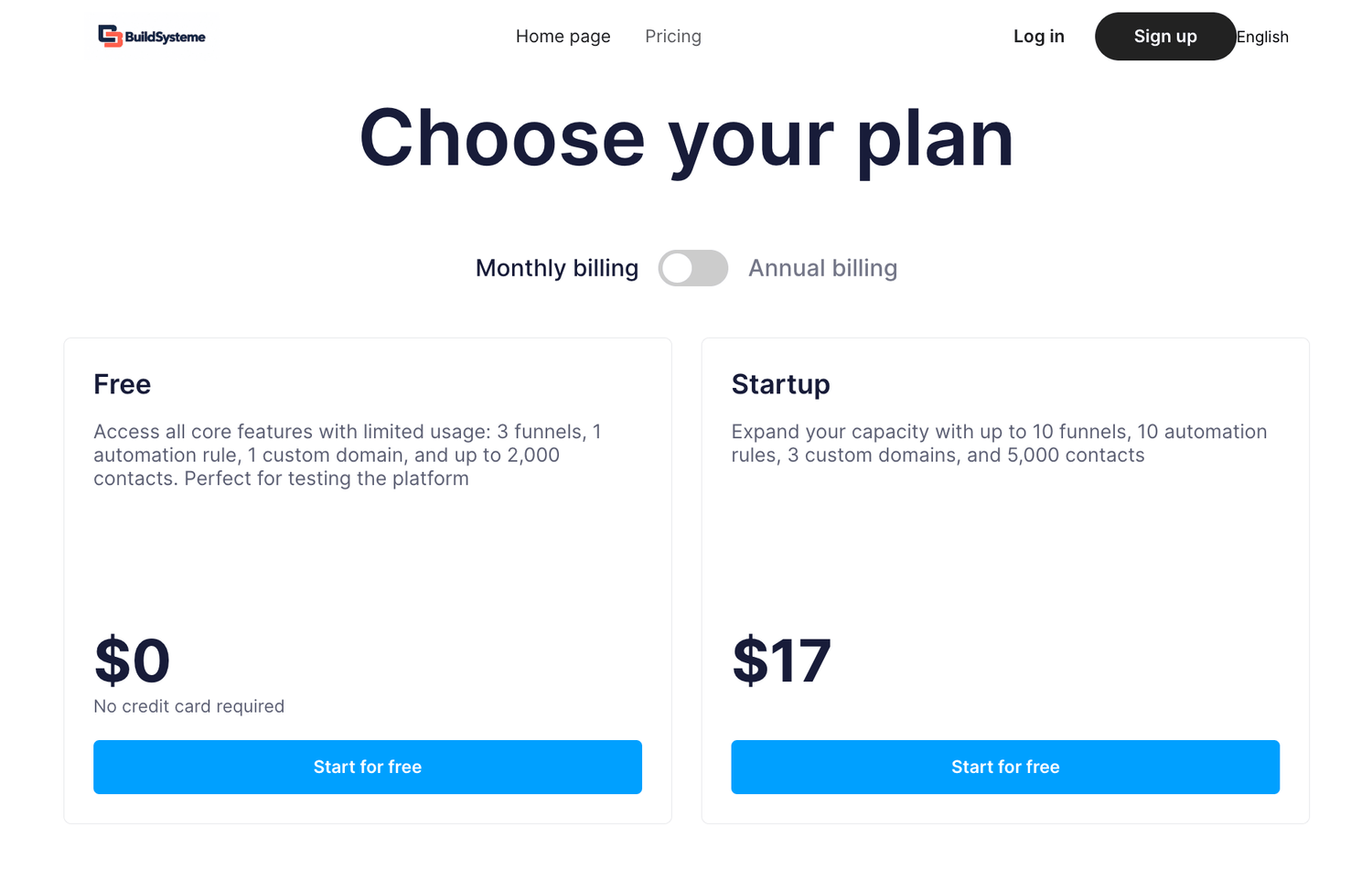
Default pricing page
The pricing page connects with the white-label plan configuration. I reviewed the wording carefully so visitors understand that they begin with a free account and upgrade later from the dashboard.
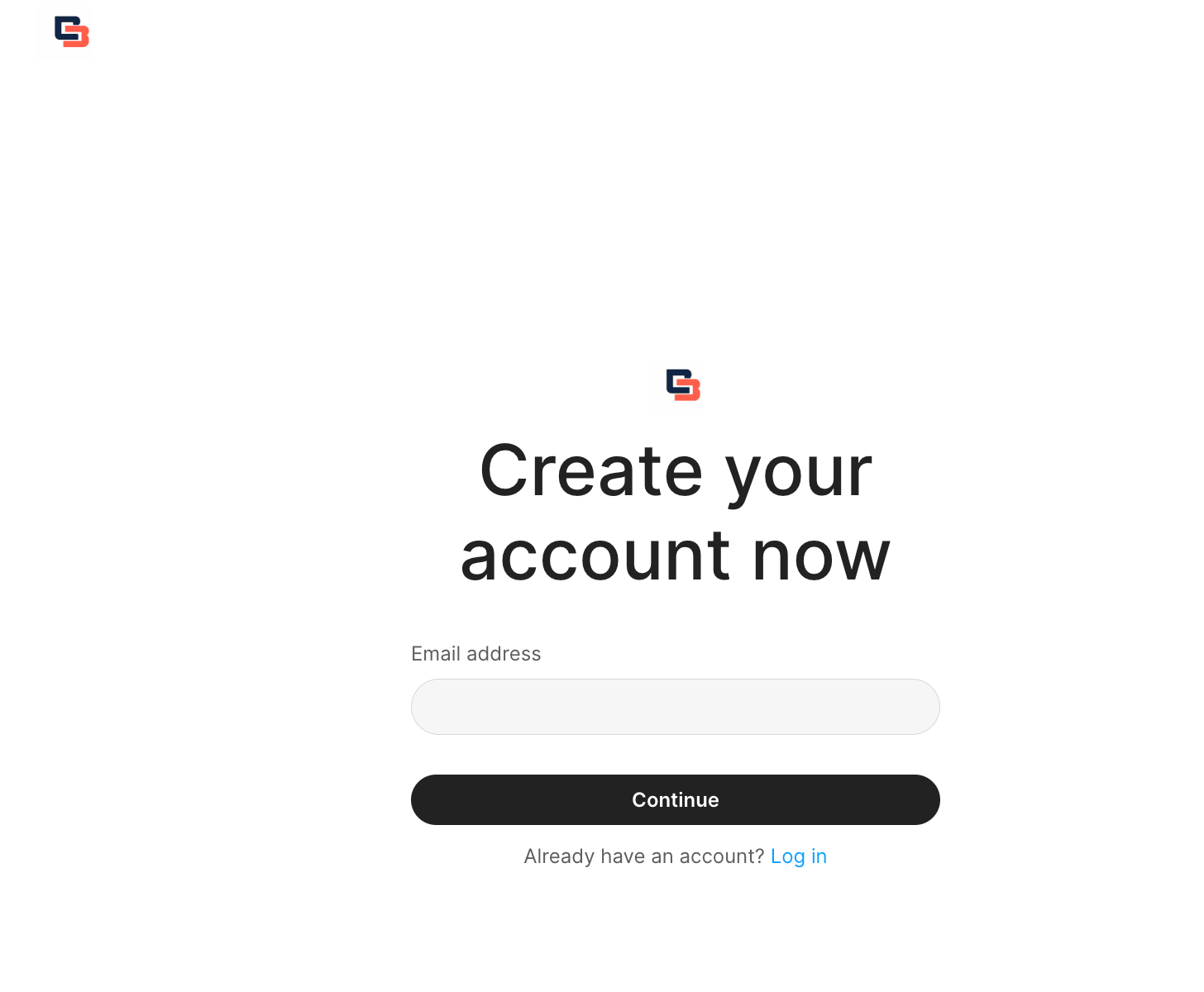
Account-creation page
The registration page is where a new customer begins the account-creation process.
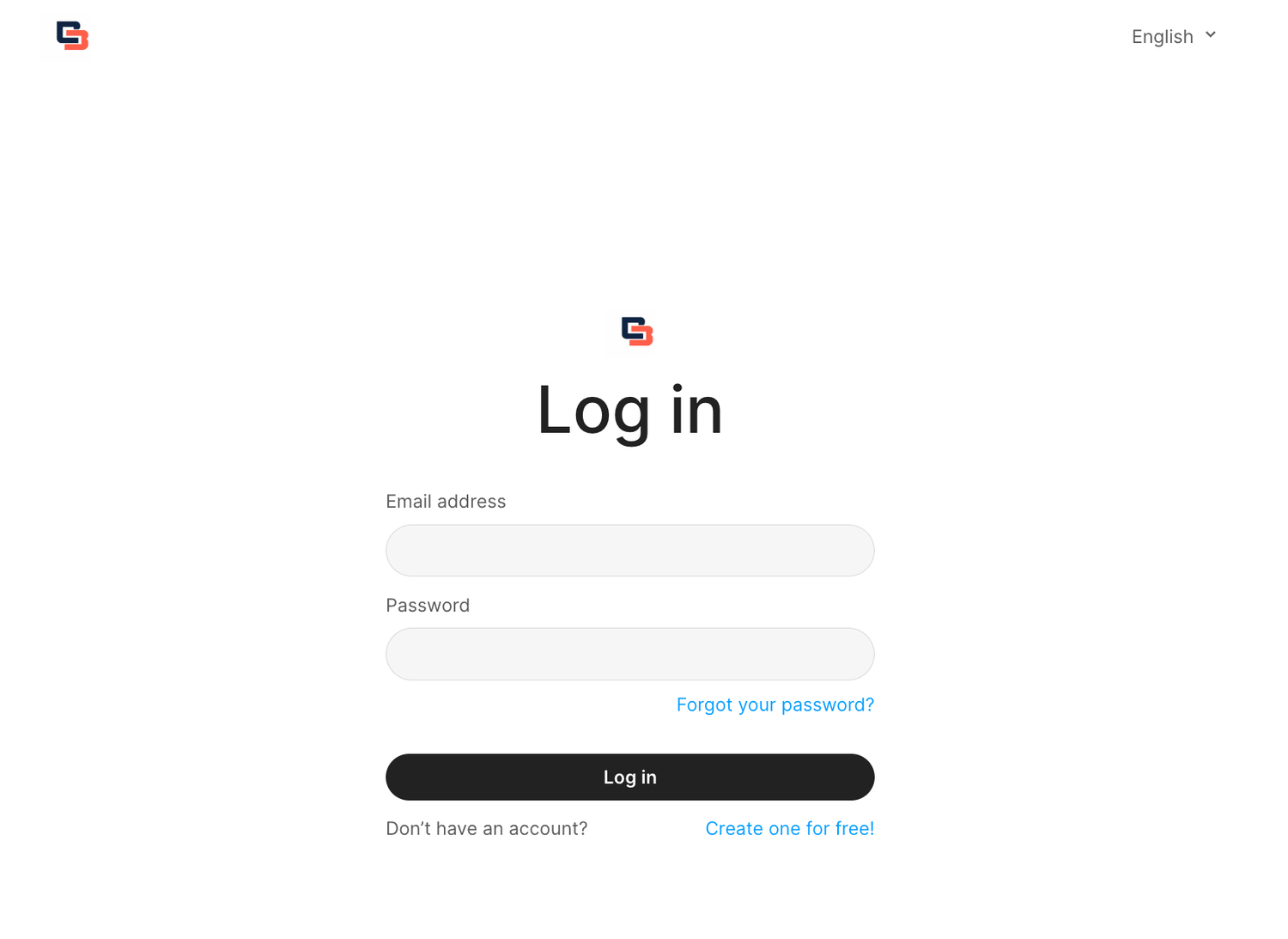
Login page
Existing customers return through the branded login page.
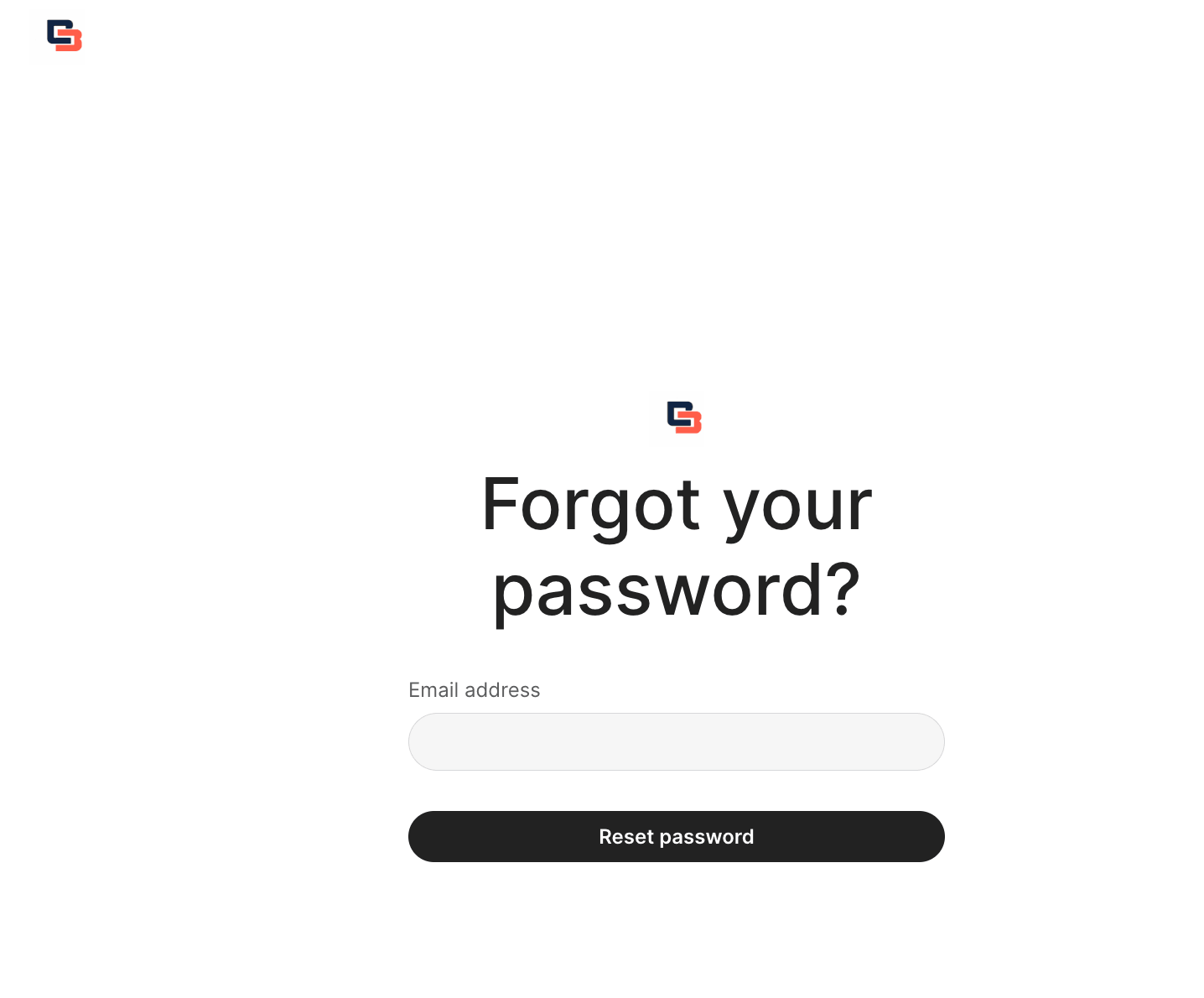
Password-recovery page
I also checked that customers had a way to recover access if they forgot their password.
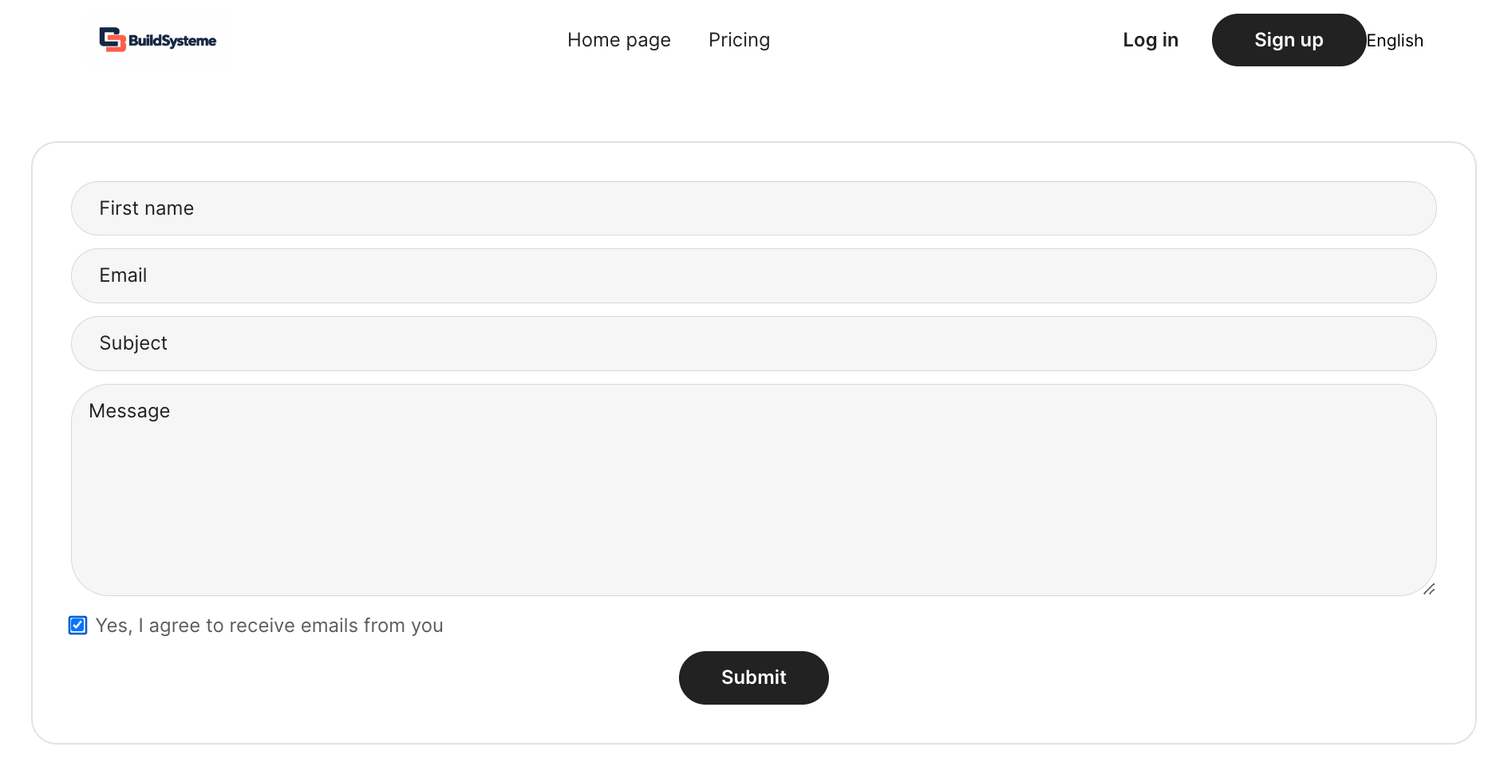
Contact page
The default contact page should be updated with a monitored customer-support email address and realistic response expectations.
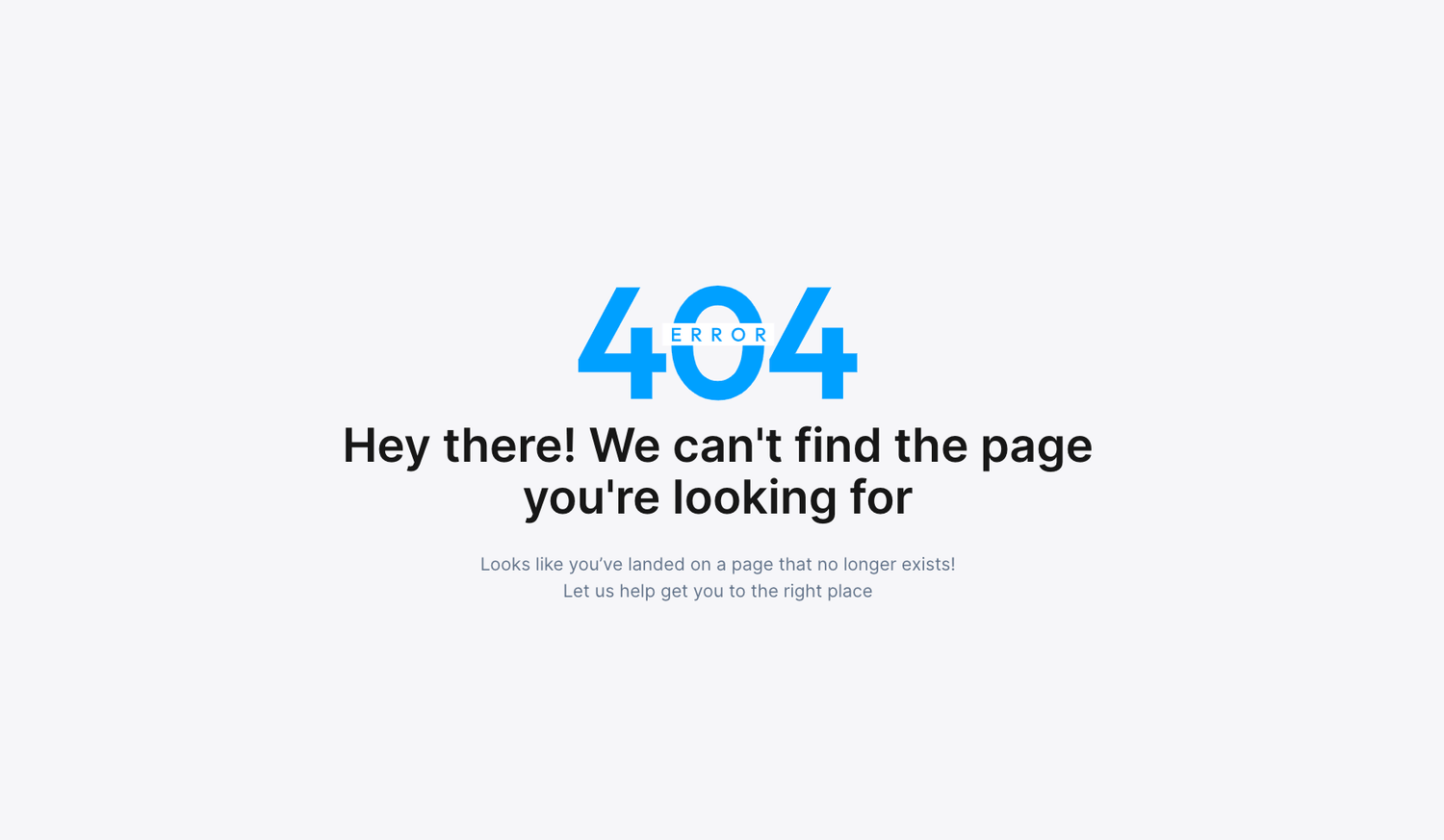
404 page
A branded 404 page helps visitors recover from a broken or mistyped URL. It should include a clear link back to the homepage.
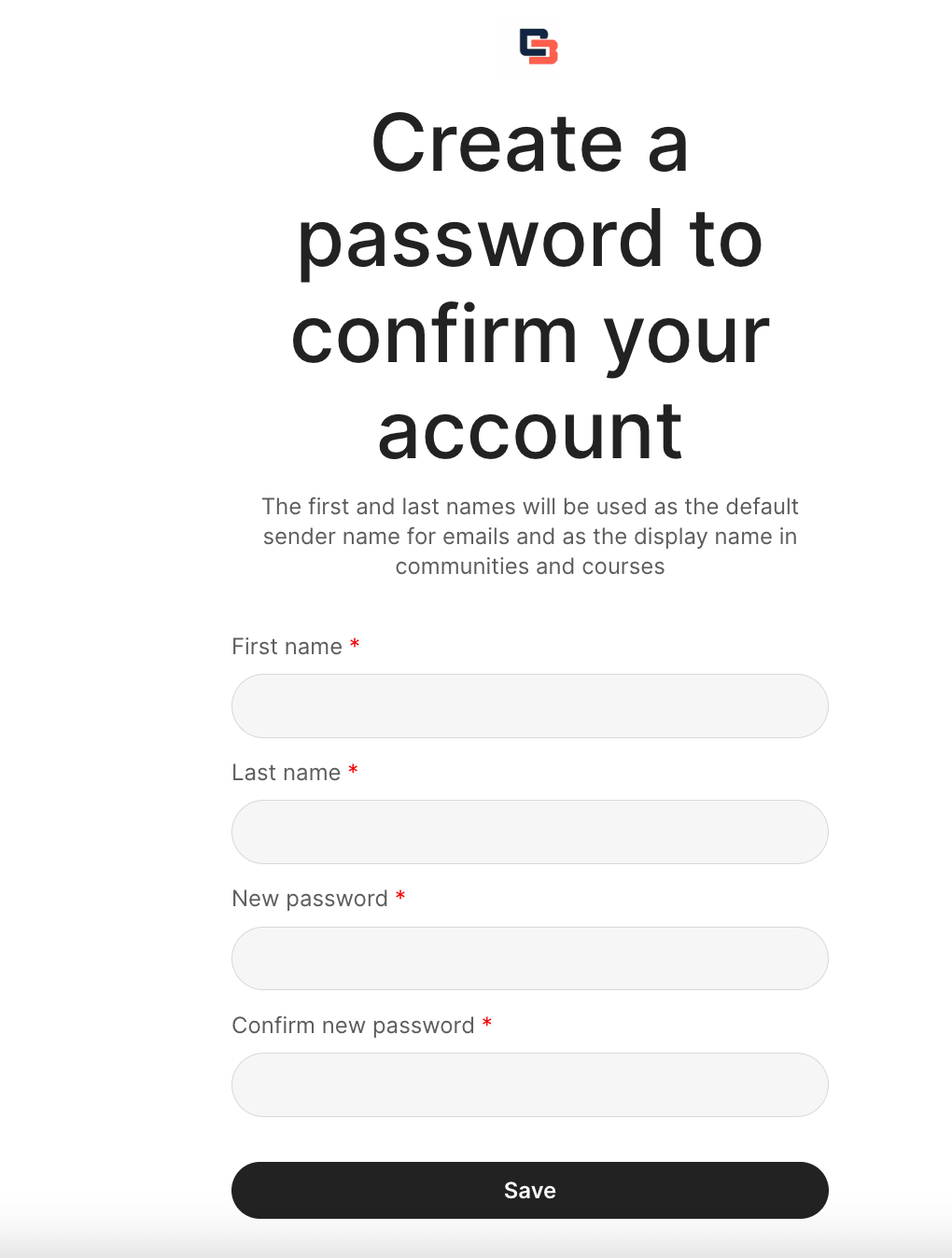
Step 5: Test Customer Registration and Confirmation
After configuring the platform, I tested the process as a new customer rather than assuming the registration path worked.
Customer registration checklist
- Open the public registration page in a private browser window.
- Use a fresh email address.
- Submit the registration form.
- Check that the confirmation email arrives.
- Verify the sender name and branding.
- Create the password.
- Confirm that the customer reaches the branded dashboard.
A test email should not already be connected to an incompatible existing account. Using a fresh address makes the test more realistic.
Step 6: Inspect the Customer Dashboard and Upgrade Path
I logged into the test customer account and checked the available plan area. This confirmed that the customer could see the current plan and reach the configured upgrade options.
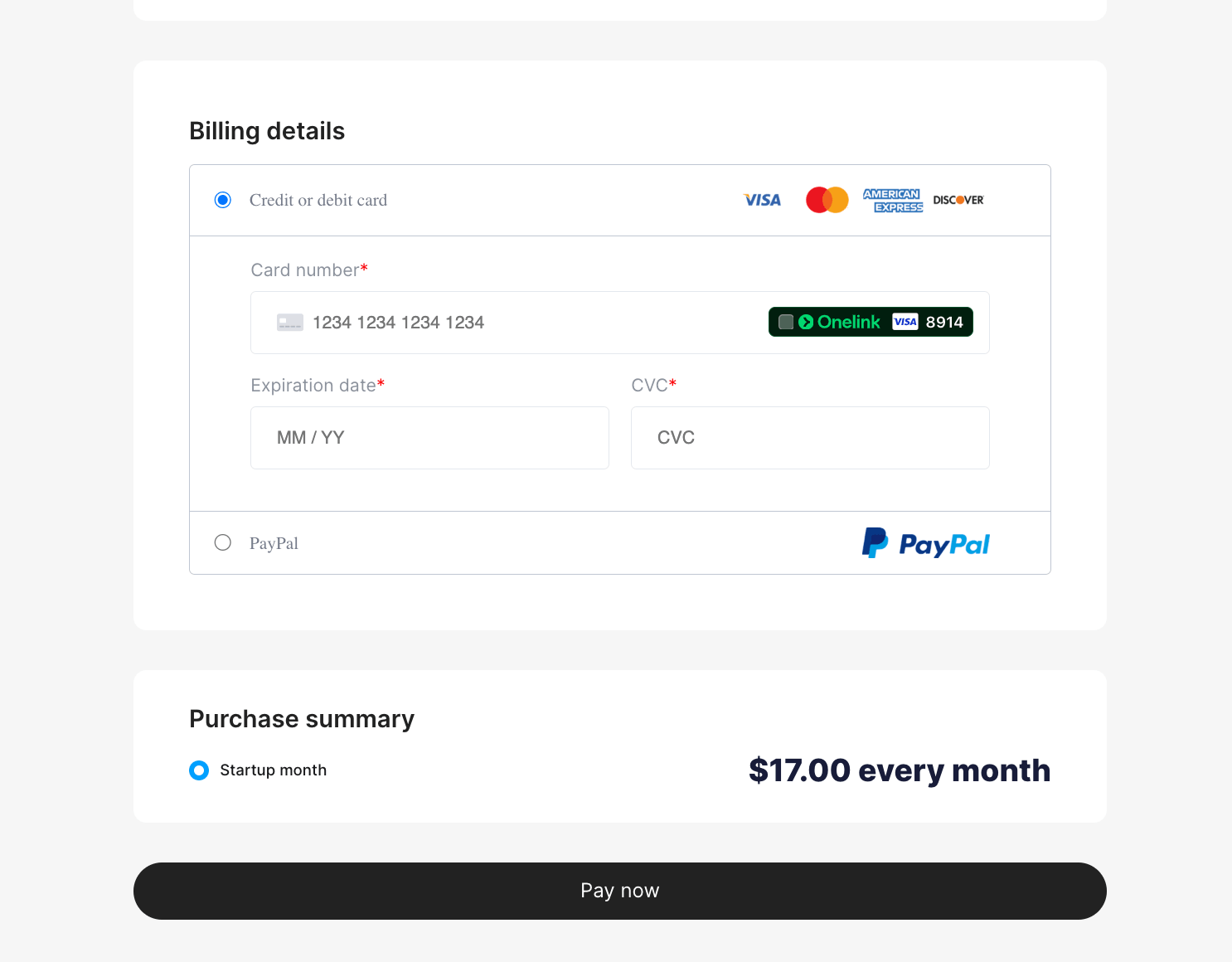
I then continued to the upgrade checkout to verify that the account and configured plan were connected correctly.
Step 7: Build and Test a Funnel From the Customer Account
I wanted to confirm that the test account was useful beyond registration and dashboard access. I therefore created a funnel from inside the client account.
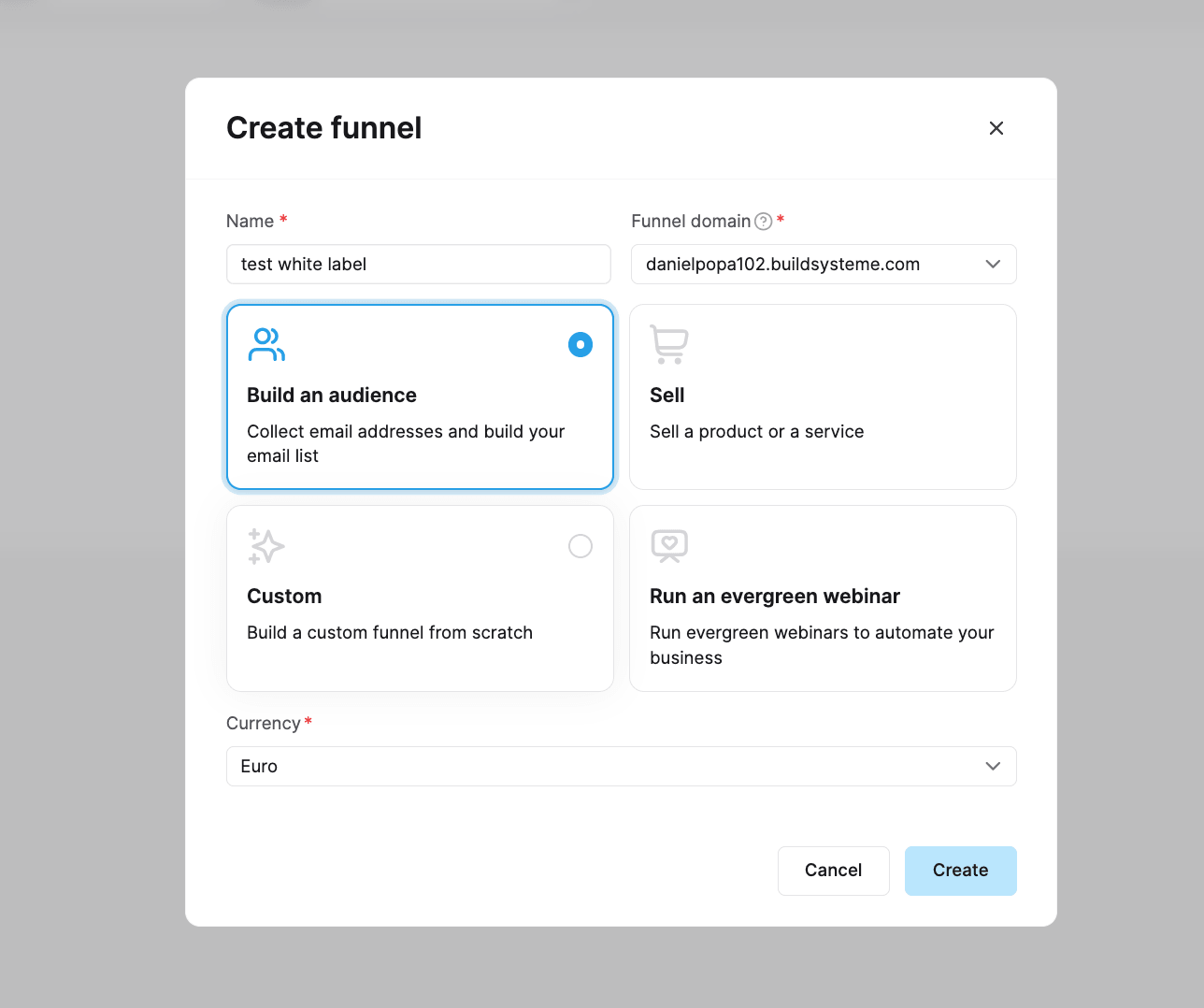
I selected a pet-related template for the practical test and opened the generated funnel.

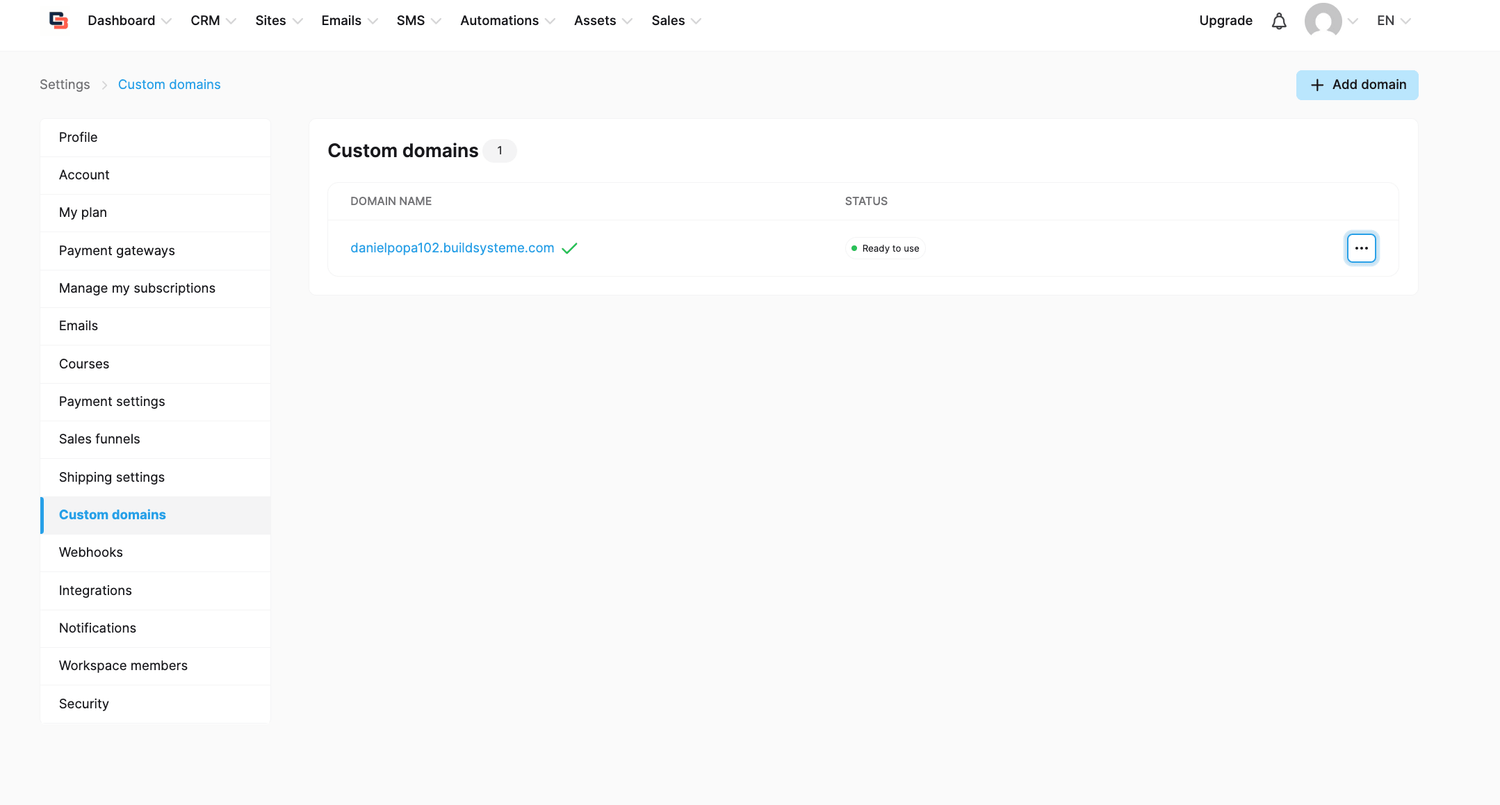
I also reviewed the customer’s custom-domain area to confirm that domain controls were available from the account.
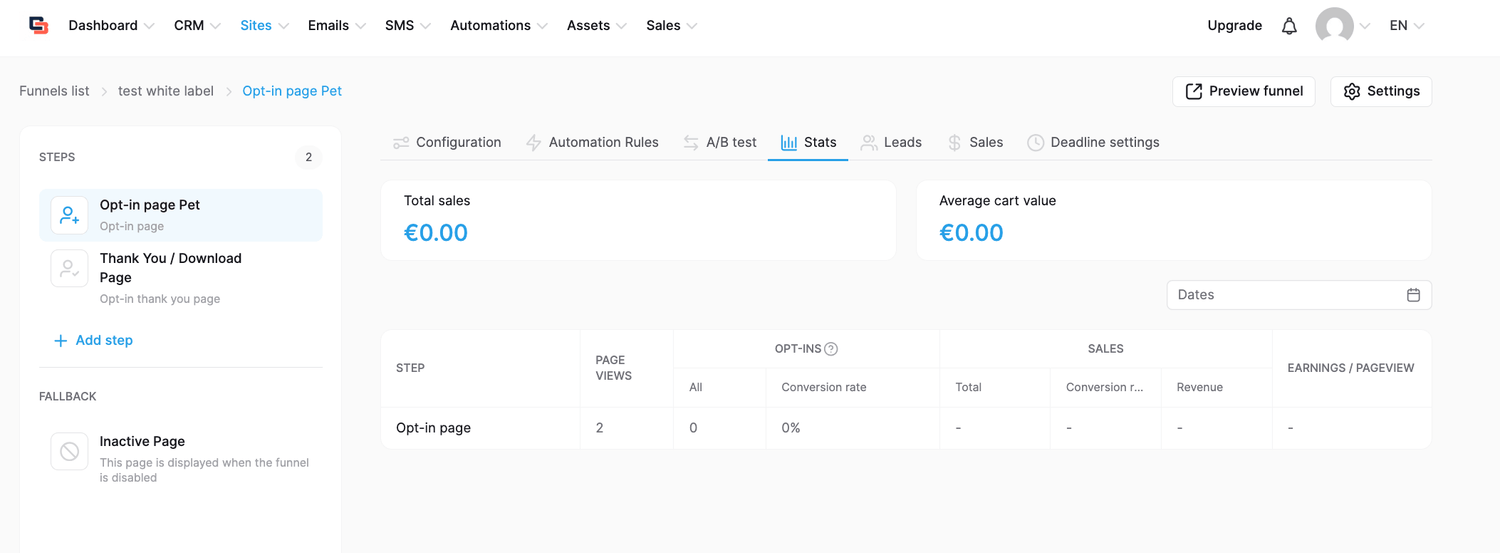
Finally, I opened the funnel statistics and confirmed that the dashboard registered the test page view.
What I Verified During This Test
| Area | What I verified |
|---|---|
| White-label activation | The feature could be configured from my logged-in account. |
| Custom domain | A dedicated branded domain could be selected and connected. |
| Branding | The platform provided controls for the name, logo, favicon and interface colours. |
| Public pages | The homepage, pricing, registration, login, password-recovery, contact and 404 pages were created and editable. |
| Plans | The reseller area displayed the plans my account was eligible to offer. |
| Customer registration | I created and confirmed a test white-label customer account. |
| Customer dashboard | The test user could enter the branded dashboard and open plan settings. |
| Upgrade path | The test account could reach the connected upgrade checkout page. |
| Funnel builder | I created and opened a funnel using a template from the customer account. |
| Statistics | The client funnel dashboard registered the test page view. |
What Is Good About the White-Label Setup?
- You do not have to develop account registration from scratch.
- Customers receive their own branded workspace.
- The public homepage and account pages are created automatically.
- The reseller can customize the main branding.
- Plan upgrades are handled through the customer dashboard.
- The client can build funnels and use the permitted platform tools.
- The reseller can review customer plans, resources and account status.
What Requires Careful Planning?
- The white-label domain must be dedicated to this use.
- Activation is not something to treat as an easily reversible experiment.
- Your plan controls which underlying plans you can offer.
- Prices must respect the minimum displayed in the reseller dashboard.
- New customers begin with a free account before upgrading.
- You remain responsible for your own branding, public-page copy and customer support.
- Your privacy, cookie and terms pages must accurately explain the service.
- You should test the complete customer journey before promoting it.
How to Start Your Own White-Label Platform
You do not need to activate white label immediately. The safest approach is to begin with a free Systeme.io account, learn the main tools and decide whether the platform fits your business.
- Create your free Systeme.io account.
- Learn how to build websites, funnels, email campaigns and automations.
- Upgrade to an eligible plan that includes the white-label feature.
- Connect a dedicated custom domain.
- Activate white label and apply your branding.
- Configure the plans you are eligible to resell.
- Test registration, login, upgrades and customer tools.
- Launch your branded platform and begin attracting customers.
The current white-label program allows you to choose your selling prices, provided they are not below the minimum displayed for the underlying plans. Systeme.io states that it does not take a revenue share or platform transaction fee from your white-label plan sales.
This means you keep the revenue generated from your white-label sales. However, normal payment-processor fees, currency-conversion charges and applicable taxes may still apply.
Start With a Free Systeme.io Account
Learn the platform first, build your initial funnel and then upgrade when you are ready to activate your own white-label platform and sell plans under your brand.
Start Systeme.io for FreeFree account available. No payment is required to begin.
Learn Systeme.io Step by Step
If you are new to the platform, use these guides to learn the tools before activating your white-label business.
Start with the platform basics
- Start Here: Systeme.io Beginner Learning Path
- Systeme.io Review: My Beginner-Friendly Platform Overview
- Systeme.io Pricing and Plans Explained
- What You Can Build With the Free Plan
Learn how to create funnels
- Sales Funnels for Beginners
- How to Build an Affiliate Funnel With Systeme.io
- Free Systeme.io Funnel Builder Course
Learn affiliate marketing and selling
Learn AI and developer-style connections
Compare the paid plans
My Recommended Path
If you are completely new, do not rush directly into reselling the platform. Begin with the free account and learn how its main tools work.
Build one website or funnel, collect a test contact, send a test email and create a simple automation. When you understand the customer experience, you will be better prepared to support people who register through your white-label platform.
Once you are ready, upgrade to a plan that currently includes white-label rights, connect a dedicated domain and complete the configuration explained in this guide.
After activation, you can sell eligible plans under your own brand and keep the revenue from those sales, subject to payment-processing charges, taxes and the platform’s current white-label rules.
Ready to Begin?
Create your free Systeme.io account, learn the platform and upgrade when you are ready to launch your own branded white-label business.
Create My Free Systeme.io AccountPricing and availability note: White-label access, eligible plans, resource limits and prices may change. Verify the current information displayed inside your account before upgrading or selling access.